
The CMS landscape has never been more contested. For years, WordPress sat unchallenged as the default choice for anything web — from a local bakery's homepage to a Fortune 500 intranet. Then Webflow arrived, and a segment of the market started asking a question that would have seemed absurd a decade ago: do we actually need WordPress for this?
This is not a "which is better" post. Better is context-dependent, and any agency that tells you otherwise is selling you a preferred stack, not a solution. What this post is: a rigorous, technically grounded breakdown of where each platform excels, where each one creates friction, and how to make a defensible architectural decision for your next project.
The Architecture Divide: Database-Driven vs. Visual-First
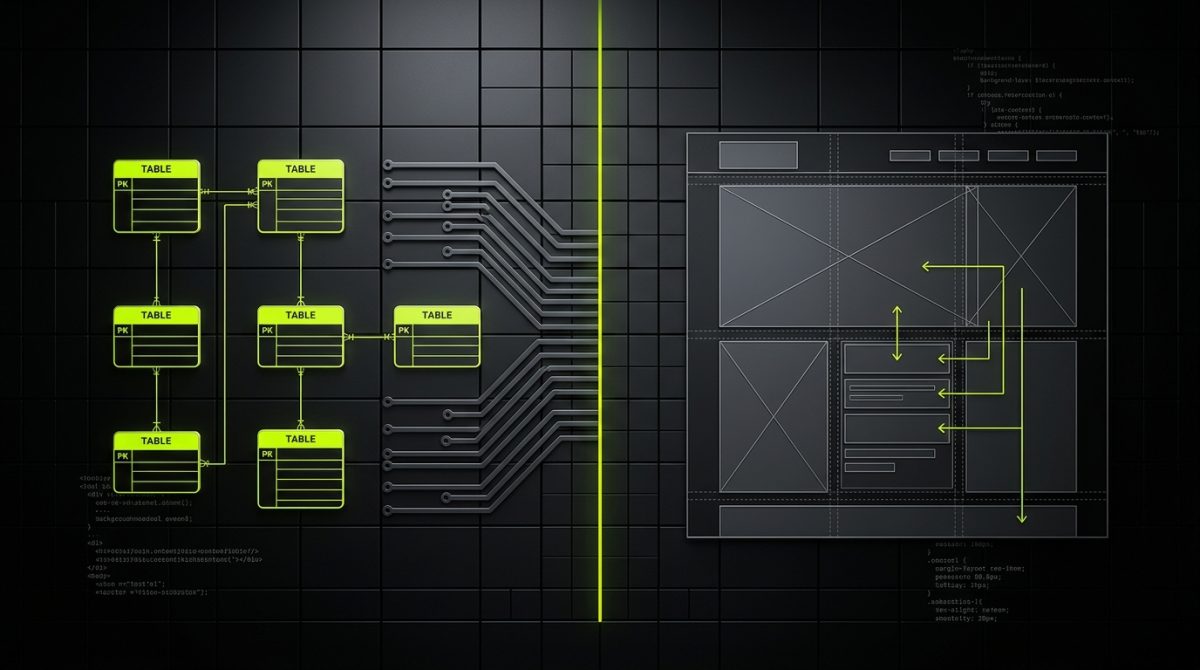
Understanding the philosophical difference between WordPress and Webflow is the prerequisite for every decision that follows. They were built with fundamentally different mental models, and that shapes everything — from how you model content to how you deploy a change.
WordPress: A Publishing Engine with an Extensibility Core
WordPress is a PHP application backed by a MySQL database. Its architecture is built around a hook system — actions and filters — that allows code to intercept and modify almost any behavior at runtime. This is its superpower. A custom plugin can register a new post type, expose a REST API endpoint, fire a background cron job, and modify the checkout flow of a WooCommerce store, all without touching core files.
The content model is explicit and structured:
// Registering a custom post type with full REST API support
register_post_type( 'product_case_study', [
    'labels'       => [ 'name' => 'Case Studies' ],
    'public'       => true,
    'show_in_rest' => true,
    'supports'     => [ 'title', 'editor', 'thumbnail', 'custom-fields' ],
    'taxonomies'   => [ 'industry', 'region' ],
] );
This kind of explicit content modeling — custom post types, taxonomies, meta fields, REST API endpoints — is where WordPress genuinely has no peer in the no-code/low-code space. The data lives in a relational database you control. You can query it with WP_Query, expose it via the REST API, sync it with an external CRM, or pipe it into a headless front-end. The architecture is yours to shape.
The flip side is that this power requires stewardship. A WordPress installation with 40 plugins, a poorly coded theme, and no deployment pipeline is a liability. The platform rewards teams that treat it like software — version-controlled, tested, deployed through CI/CD, maintained on a retainer. Teams that treat it like a drag-and-drop tool tend to accumulate technical debt at a rate that eventually forces a rebuild.
Webflow: A Design System with a CMS Attached
Webflow's architecture inverts the priority. The Designer is the primary interface — a visual canvas that generates clean, semantic HTML and CSS. The CMS is a structured layer on top, built to feed dynamic content into that visual system.
This means Webflow's content model is defined visually. You create a Collection, define fields, and bind them to elements on the canvas. The result is a tight coupling between content structure and presentation that makes editorial workflows remarkably fast for content-heavy marketing sites.
But that coupling is also a constraint. Webflow Collections have field limits, item limits per plan, and no native support for relational data beyond basic reference fields. You cannot write a custom query. You cannot define a computed field. You cannot trigger a background process when a CMS item is published — at least not without reaching for the Webflow API and an external automation layer like n8n.
Where the Divide Matters Most
The architectural difference becomes decisive in these scenarios:
- Complex data relationships: A platform with products, vendors, categories, reviews, and inventory states belongs in WordPress with a properly modeled database schema, not in Webflow Collections.
- Design-led marketing sites: A SaaS landing page, a brand site, or a campaign microsite — where the visual output is the primary deliverable and content editors need a clean, non-technical interface — is a natural fit for Webflow.
- Headless architectures: WordPress wins here. Its REST API and WPGraphQL layer make it a strong headless CMS. Webflow can be used headlessly via its API, but the tooling and community around WordPress as a headless backend is significantly more mature.
- Ongoing editorial volume: Both platforms handle blogs and content hubs, but Webflow's editor is genuinely more approachable for non-technical content teams. WordPress's Gutenberg editor has closed the gap, but it still carries more cognitive overhead for users who aren't comfortable with block-based editing.
Performance, Hosting, and the Infrastructure Reality
Platform performance is not just about code quality — it's about the infrastructure layer beneath it, and how much control you have over that layer. WordPress and Webflow represent opposite ends of the control spectrum.
Webflow's Managed Infrastructure
Webflow hosts everything on its own CDN (Fastly). You get global edge delivery, automatic SSL, and zero server management. For agencies delivering marketing sites to clients who have no in-house DevOps, this is a genuine operational advantage. There is no server to patch, no PHP version to upgrade, no Redis configuration to tune.
Core Web Vitals performance on Webflow is generally strong out of the box, particularly for sites that don't load excessive third-party scripts. The platform generates lean HTML and CSS, and the visual editor enforces a degree of structural discipline that prevents some of the layout bloat common in WordPress page-builder sites.
The trade-off is that you are a tenant in Webflow's infrastructure. You cannot configure server-side caching headers at a granular level. You cannot run server-side code. You cannot deploy a custom PHP or Node.js process alongside your site. If Webflow's CDN has a regional outage, your options are limited to waiting.
WordPress and the Hosting Decision
WordPress performance is almost entirely a function of the hosting environment and how the application is configured. A WordPress site on a shared hosting plan with no object caching and a theme that loads 12 JavaScript libraries will be slow. The same codebase on WP Engine with Redis object caching, a properly configured CDN, and a lean custom theme will score 95+ on Core Web Vitals.
This is why hosting partner selection matters. We work with WP Engine, SiteGround, and Automattic's own infrastructure — platforms that are purpose-built for WordPress, with server-level caching, automatic backups, staging environments, and security hardening that shared hosting cannot match.
For performance-critical WordPress builds, the configuration stack typically looks like this:
- Object caching: Redis or Memcached, configured at the server level
- Page caching: WP Engine's built-in caching or WP Rocket
- CDN: Cloudflare or the host's native CDN for static assets
- Image optimization: WebP conversion, lazy loading, responsive srcset attributes
- Database optimization: Query monitoring with Query Monitor, index optimization for custom tables
- Code quality: No bloated page builders — custom block themes with minimal JavaScript
The performance ceiling for WordPress is higher than Webflow's, but reaching it requires deliberate engineering decisions. Webflow's floor is higher — a mediocre Webflow build will outperform a mediocre WordPress build almost every time.
The Hosting Cost Equation for B2B Projects
For B2B clients evaluating total cost of ownership, hosting economics matter:
- Webflow: Plans range from $23/month (Basic) to $212/month (Business) for standard sites, with CMS and ecommerce tiers in between. Enterprise pricing is custom. The cost is predictable and includes hosting, CDN, and SSL.
- WordPress: Managed hosting on WP Engine starts at around $30/month for a single site and scales with traffic and storage. Add a maintenance retainer for plugin updates, security monitoring, and performance audits, and the monthly cost is higher — but so is the architectural flexibility.
For high-traffic, complex applications, WordPress on managed hosting is typically more cost-effective at scale. For a 20-page marketing site with a blog, Webflow's all-in pricing is often the cleaner commercial model.
Content Editing, Editorial Workflows, and the Client Handoff
The platform decision doesn't end at launch. For most B2B projects, the client will be editing content for years after the agency hands over the keys. The editorial experience — how intuitive it is, how much training it requires, how gracefully it handles mistakes — is a first-class concern.
Webflow's Editorial Experience
Webflow's Editor (the front-end editing mode, distinct from the Designer) is genuinely one of the best content editing experiences available. Editors click directly on the live site, modify text, swap images, and publish — without ever seeing a dashboard, a block library, or a settings panel. For clients who are intimidated by traditional CMS interfaces, this is transformative.
CMS Collections in Webflow are structured and constrained in a way that prevents editors from breaking layouts. A field is a field — a rich text field renders in a defined styled container, an image field feeds a defined image element. Editors cannot accidentally insert a 4000px image into a card component and destroy the grid.
The limitation is that Webflow's editor is read-only for structural changes. Editors can update content; they cannot add new page sections, reorder components, or create new templates. For clients who need that flexibility, you're looking at either training them in the Designer (not recommended for non-technical users) or building a more complex CMS architecture that anticipates their content needs upfront.
WordPress Gutenberg and the Block Editing Paradigm
WordPress's Gutenberg editor has matured significantly since its contentious 2018 launch. Full Site Editing (FSE) with block themes now allows editors to modify headers, footers, and global styles through a visual interface — a capability that was previously locked behind theme files and child theme CSS.
For developers, Gutenberg blocks are a powerful content modeling tool. A custom block can encapsulate a complex layout — a testimonial card, a pricing table, a feature comparison — and expose only the fields that editors need to modify:
// Registering a custom Gutenberg block with controlled editorial fields
registerBlockType( 'werun/testimonial-card', {
    title: 'Testimonial Card',
    category: 'werun-blocks',
    attributes: {
        quote:      { type: 'string' },
        authorName: { type: 'string' },
        authorRole: { type: 'string' },
        avatarUrl:  { type: 'string' },
        rating:     { type: 'number', default: 5 },
    },
    edit: EditComponent,
    save: SaveComponent,
} );
This approach — building a library of custom blocks that editors assemble from — gives clients significant editorial flexibility while maintaining design integrity. It's closer to a component system than a traditional CMS, and for clients with complex content needs, it's more powerful than anything Webflow's editor offers.
The honest caveat: Gutenberg has a steeper learning curve than Webflow's Editor. Non-technical clients need training, and without well-documented block patterns and editor styles, they will find ways to produce layouts that don't match the design system. The solution is to invest in the editor experience at build time — locking down block options, providing pre-built patterns, and configuring theme.json to constrain the color and typography palette.
Multi-Author Workflows and Role Management
For organizations with multiple content contributors — editorial teams, regional marketing managers, external contributors — WordPress's role and capability system is significantly more granular than Webflow's:
- WordPress: Six default roles (Subscriber through Administrator), fully extensible with custom capabilities. A plugin like Members or User Role Editor allows surgical permission control — a regional editor can publish posts in their category but cannot modify global settings or other authors' content.
- Webflow: Editor and Admin roles, with limited granularity. Webflow's Workspace roles add some nuance at the project level, but it's not comparable to WordPress's capability system for large editorial teams.
For enterprise clients with complex governance requirements — content approval workflows, multi-region publishing, contributor access without design access — WordPress is the more defensible choice.
Extensibility, Integrations, and the Long-Term Architecture
Every platform decision is also a bet on the future. The question is not just "what can this platform do today" but "what will we need it to do in 18 months, and how painful will that be to build?"
WordPress as an Integration Hub
WordPress's REST API, combined with its hook system, makes it a natural integration hub for complex B2B stacks. We've built WordPress installations that serve as the content layer for a React front-end, sync product data with a Salesforce CRM via custom REST endpoints, trigger fulfillment workflows through WooCommerce hooks, and push content updates to a mobile app via GraphQL.
The key integrations we build regularly on WordPress:
- WooCommerce + ERP: Custom order sync via REST API and webhook listeners, mapping WooCommerce order statuses to ERP fulfillment states
- CRM integration: Bidirectional contact sync between WordPress user accounts and HubSpot or Salesforce, triggered on registration, purchase, and form submission
- Headless delivery: WordPress as a headless CMS feeding a Next.js or Astro front-end via WPGraphQL, with Incremental Static Regeneration for performance
- Multisite networks: WordPress Multisite for enterprise clients managing multiple brand sites from a single installation, with shared plugins and separate content databases
Each of these is achievable because WordPress exposes its internals through a documented, stable API surface. The hook system means integrations are additive — they don't require modifying core files, which keeps upgrades safe.
Webflow's Integration Ecosystem
Webflow integrates primarily through its own API and through third-party middleware. The Webflow CMS API allows external systems to create, read, update, and delete Collection items — which means you can pipe data from an external source into Webflow's CMS and have it render through your designed templates.
For marketing sites connected to a CRM or marketing automation platform, Webflow's integration story is solid:
- HubSpot: Native form integration, or custom forms posting to HubSpot's Forms API
- Memberstack / Outseta: Gated content, membership tiers, and client portals built on top of Webflow's static pages
- Zapier / Make: Middleware-based automation triggered by Webflow form submissions or CMS item events
- Stripe: Payment collection via custom code embeds or Webflow's native ecommerce
Where Webflow's integration story breaks down is in complex, bidirectional data sync scenarios. If you need Webflow to display inventory-aware product data that updates in near real-time from an external system, you're building a JavaScript layer that fetches from an API on the client side — which has performance and SEO implications — or you're running a scheduled n8n workflow that pushes updates to Webflow's CMS API, which introduces latency.
We've built exactly these kinds of architectures for clients who chose Webflow for its design flexibility but needed live data integration. They work, but they require a more complex maintenance posture than the equivalent WordPress build.
When to Escalate Beyond Both Platforms
There is a class of project where neither WordPress nor Webflow is the right primary framework — and recognizing that threshold early saves significant rebuild cost later.
Indicators that you've outgrown both platforms:
- Real-time data requirements: Live inventory, live pricing, live availability — scenarios where data staleness of even a few minutes is unacceptable
- Custom authentication flows: Complex multi-tenant authentication, SSO with enterprise identity providers, or fine-grained resource-level permissions
- Application-level interactivity: Dashboards, configurators, booking systems, or anything that behaves more like a web application than a content site
For these scenarios, we build custom front-ends with Next.js or Astro, often backed by WordPress as a headless CMS or a purpose-built API layer. Webflow can also feed a Next.js front-end via its API — a pattern we use when clients want Webflow's visual editing experience but need application-level front-end capabilities.
Making the Decision: A Framework for B2B Projects
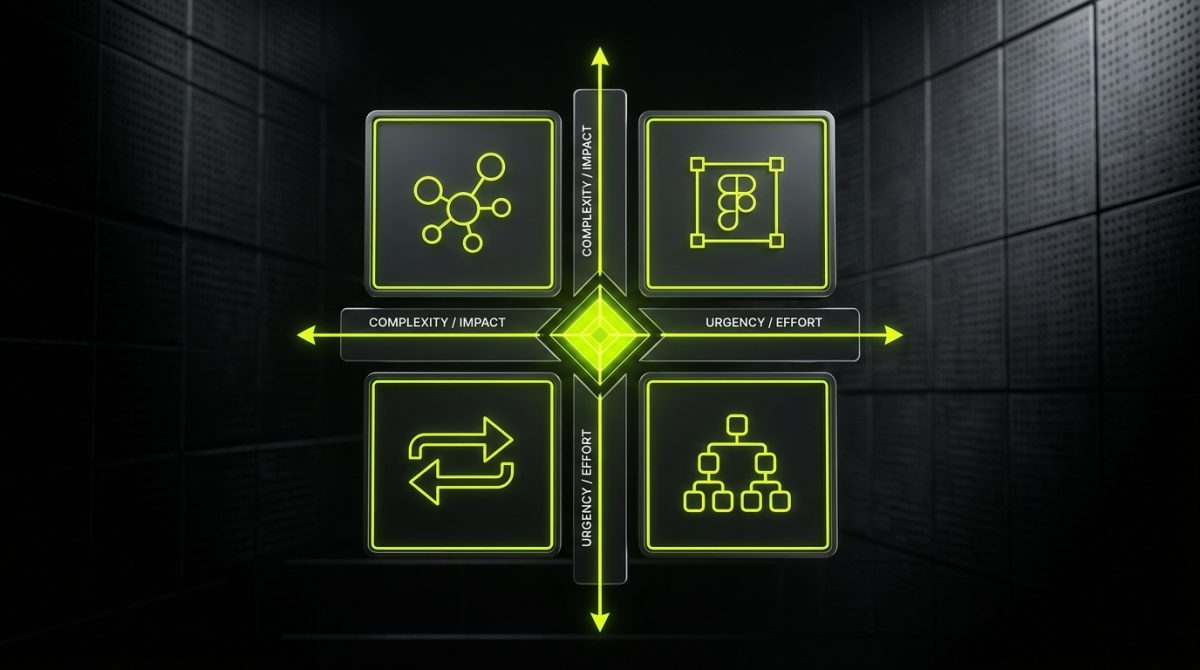
After working across both platforms on projects ranging from SaaS marketing sites to enterprise WooCommerce stores, the decision framework we use internally comes down to four axes.
Axis 1: Content Complexity
Map out the content model before choosing a platform. Count the entity types, the relationships between them, and the number of fields per entity.
- Simple content model (pages, posts, a blog, a team directory): Webflow handles this cleanly.
- Moderate content model (products, categories, reviews, related content, localized variants): WordPress with custom post types and ACF is more maintainable.
- Complex content model (relational data, computed fields, inventory-aware content, multi-tenant data): WordPress or a custom backend.
Axis 2: Design Fidelity Requirements
How close does the build need to be to the Figma file, and how frequently will the design evolve?
- High design fidelity, infrequent structural changes: Webflow. The Designer produces pixel-accurate output and the CSS is clean and inspectable.
- High design fidelity, frequent structural changes: WordPress with a custom block theme and a well-documented component library. More upfront investment, but more flexible long-term.
- Design system at scale (multiple sites, shared components, white-label): WordPress Multisite or a headless architecture with a shared design system.
Axis 3: Client Technical Capability
Who will be maintaining the site after launch, and what is their technical baseline?
- Non-technical marketing team, content-only edits: Webflow Editor is the better experience.
- Marketing team that needs to build new landing pages: Webflow with well-structured templates, or WordPress with a curated block library and patterns.
- In-house developer or technical team: WordPress — the extensibility justifies the complexity.
Axis 4: Integration and Automation Requirements
List every system the site needs to talk to, and in which direction data flows.
- One-way form submissions to a CRM: Both platforms handle this equally well.
- Bidirectional sync with an ERP or CRM: WordPress has a significant advantage.
- Real-time data from an external API: Custom front-end, regardless of CMS choice.
- Automation workflows (triggered by content events, purchases, or form submissions): WordPress hooks give you more native leverage; Webflow requires external middleware like n8n.
The honest answer is that for most B2B projects, the decision is not WordPress or Webflow — it's WordPress and Webflow in different parts of the portfolio. A company might run its marketing site on Webflow for editorial agility and its customer portal on WordPress for data model flexibility. Treating the two platforms as mutually exclusive is a false constraint.
What matters is matching the platform's architectural strengths to the project's actual requirements — and building it properly, whichever platform you choose.