
The Architecture Problem Traditional CMS Platforms Never Solved
Every development team that has spent serious time inside WordPress, Drupal, or Joomla knows the same frustration: the content model and the presentation layer are coupled in ways that create friction at every stage of a project. You define a custom post type in PHP, register meta fields through a plugin like ACF, wire up a template file, and then hand it off to an editor who still has to navigate a backend that looks nothing like the finished site. The gap between what the editor sees and what the visitor experiences is enormous — and bridging it requires either extensive custom development or a pile of third-party plugins that each introduce their own maintenance overhead.
Webflow's CMS was designed from first principles to eliminate that gap. Rather than bolting a visual layer onto a database-driven content architecture, Webflow treats content structure and visual design as a single, unified system. The result is a CMS that behaves fundamentally differently from anything built on the traditional LAMP stack — and understanding exactly how it works is essential if you're evaluating whether Webflow is the right platform for a content-heavy project.
The Traditional CMS Mental Model
In a traditional CMS, the content pipeline looks roughly like this:
- A developer defines a data schema (post types, taxonomies, custom fields)
- A separate template system renders that data into HTML
- A theme or page builder applies styling
- An editor enters content into form fields that bear no visual relationship to the output
This separation of concerns has genuine architectural merits — it's why headless CMS platforms like Contentful and Sanity have gained traction. But for the majority of marketing sites, product pages, and editorial builds, the overhead of managing that separation adds cost and complexity that the project doesn't actually need.
What Webflow Does Instead
Webflow collapses the schema, template, and styling layers into a single design-time workflow. When you create a CMS Collection in Webflow, you're simultaneously:
- Defining the data model — field types, validation rules, reference relationships
- Building the template — the Collection Page that renders each item
- Styling the output — with the same visual tools used everywhere else on the site
The editor experience in Webflow's Editor mode is a direct overlay on the published site. Editors click into live content, make changes, and see exactly how those changes affect the layout — without ever leaving the front end. That is a structural difference, not a cosmetic one.
How Webflow CMS Collections Actually Work
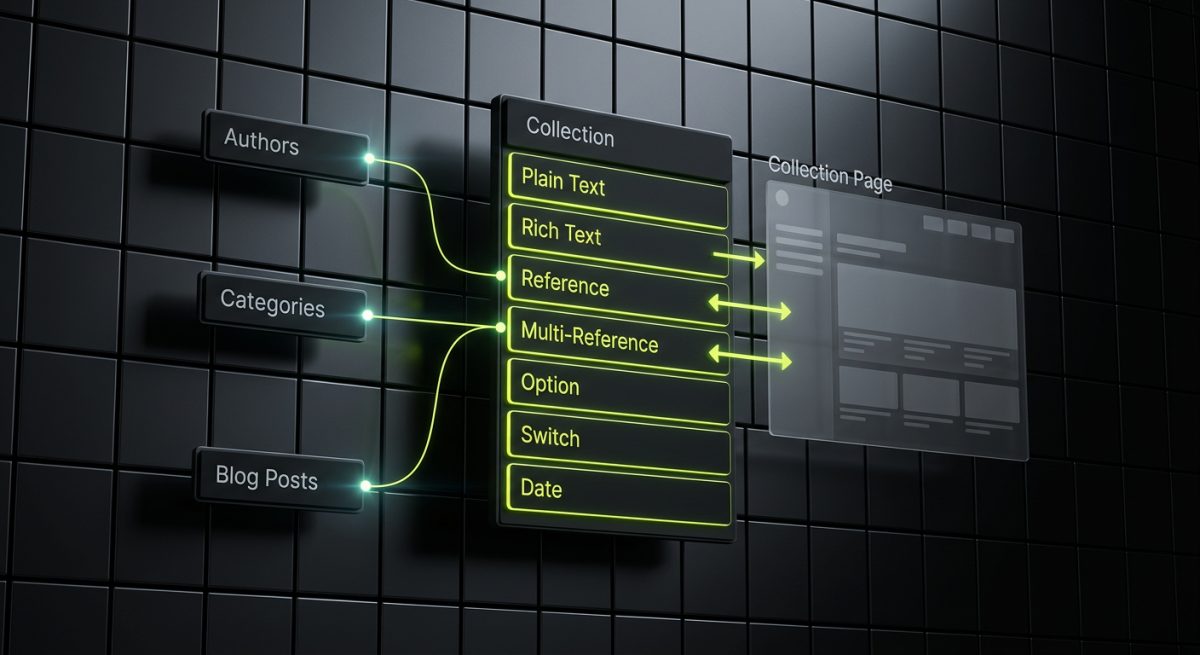
The core unit of Webflow's CMS is the Collection. A Collection is a structured content type — think of it as a database table with a defined schema — that generates two things automatically: a list of items accessible via the Webflow API, and a set of dynamic pages rendered from a shared template.
Defining a Collection Schema
When you create a Collection, you add fields from a library of typed inputs:
- Plain Text / Rich Text — for titles, body copy, and formatted content
- Image / Video — with built-in optimization and responsive delivery
- Reference / Multi-Reference — for relational links between Collections
- Option — for enumerated values like status, category, or tag
- Switch — boolean toggles, useful for conditional display logic
- Date / Time — with locale-aware formatting
- Color / Link / Number — for structured data that drives design decisions
A blog post Collection might have a Title (plain text), Body (rich text), Author (reference to a People Collection), Published Date (date), Featured Image (image), and Category (reference to a Categories Collection). That schema is defined once in the Designer, and every Collection item automatically inherits it.
Collection Pages and Dynamic Binding
Once a Collection exists, you build a single Collection Page template. Every element on that page can be bound to a Collection field using Webflow's visual binding panel — no template syntax, no Twig, no Liquid. You drag a text element onto the canvas, open the settings panel, and select which field populates it. Webflow handles the rendering loop.
This means a developer can build a fully styled, responsive, interaction-rich article template and hand it to an editor who never touches the template again. The editor adds a new item to the Collection, fills in the fields, and the new page is live — styled identically to every other item, with the correct Open Graph tags, slug, and sitemap entry generated automatically.
Collection Lists and Filtering
Beyond individual Collection Pages, you can embed Collection Lists anywhere on the site — on the homepage, in a sidebar, on a category page — and apply filters and sort rules visually. Want to show the three most recent posts tagged "Product Update" on the homepage? That's a Collection List with a filter condition and a sort rule, no code required.
For more advanced filtering — user-driven search, dynamic URL parameter filtering — you layer in custom JavaScript against the Webflow API, which is exactly the kind of work we handle at werun.dev when a client's editorial workflow outgrows the native tooling.
The Webflow CMS API and Why It Changes the Integration Equation

Webflow exposes its CMS through a well-documented REST API that covers Collections, Items, Assets, and more. This is where the platform stops being a closed ecosystem and starts behaving like a proper headless CMS — without requiring you to abandon the visual design layer.
What the API Enables
# Fetch all items from a Collection
GET https://api.webflow.com/v2/collections/{collection_id}/items
Authorization: Bearer {api_token}
With the CMS API, you can:
- Push content programmatically — sync product data from a PIM, pull blog posts from an internal knowledge base, or automate item creation from a form submission via Zapier or n8n
- Read content externally — use Webflow as a content source for a Next.js or Astro front end when performance or routing requirements exceed what Webflow's native hosting delivers
- Trigger rebuilds — use webhooks to invalidate caches or trigger CI/CD pipelines when content changes
- Integrate with Airtable — maintain a content database in Airtable and sync it to Webflow CMS on a schedule, giving non-technical teams a familiar spreadsheet interface while Webflow handles the rendering
At werun.dev, we regularly build CMS architectures that use Webflow as the design and rendering layer while connecting it to external data sources via the API and middleware tools like Zapier, Make, or custom Node.js scripts. The result is a site that editors manage visually, but whose content pipeline connects to the broader business stack — CRMs, ERPs, marketing automation platforms, and internal tools.
Webflow CMS vs. Headless CMS: When to Use Which
| Dimension | Webflow CMS | Headless CMS (Contentful, Sanity) |
|---|---|---|
| Editor experience | Visual, on-page | Form-based backend |
| Front-end flexibility | Webflow-rendered or API-consumed | Any front end |
| Setup speed | Fast — schema + template in one tool | Slower — separate schema, front-end, and deployment pipeline |
| Developer overhead | Low to medium | Medium to high |
| Custom rendering logic | Limited without custom code | Unlimited |
| Cost | Webflow plan + hosting | CMS plan + separate hosting + front-end infrastructure |
For most marketing sites, landing pages, and editorial builds with defined content types, Webflow's integrated approach delivers faster time-to-launch and lower ongoing maintenance cost. For platforms with complex multi-channel distribution, highly custom rendering requirements, or content that feeds mobile apps and third-party services simultaneously, a dedicated headless CMS with a custom front end — or a Webflow-to-Next.js architecture — is the better call.
CMS Architecture Decisions That Make or Break Editorial Workflows
The technical flexibility of Webflow's CMS is only valuable if the Collection architecture is designed well from the start. A poorly structured schema creates the same editorial friction that plagues badly configured WordPress installs — editors work around the system rather than with it, content becomes inconsistent, and developers spend time patching structural problems instead of building new features.
Reference Fields and Relational Content
Webflow supports one-level-deep references between Collections. A Blog Posts Collection can reference an Authors Collection and a Categories Collection. This allows you to maintain author profiles and category pages as first-class content objects, update them in one place, and have those changes propagate across every post that references them.
Multi-Reference fields extend this to many-to-many relationships — a post can belong to multiple categories, a product can be associated with multiple use cases. The limitation is that Webflow does not support nested references beyond one level in Collection List bindings. If your content model requires deep relational traversal — for example, displaying the author's company name (which lives on a Companies Collection referenced by the Authors Collection) inside a blog post template — you'll need to either flatten the schema or use custom JavaScript to fetch and inject the additional data at render time.
This is a real architectural constraint, and it's one of the first things we map out during a CMS architecture engagement at werun.dev. Getting the reference structure right before content entry begins saves significant rework later.
Slug Strategy and URL Architecture
Webflow generates Collection item slugs from the item name by default, but you can override them with a dedicated slug field. For SEO-sensitive builds, we always add an explicit slug field to every Collection and establish a naming convention before the first item is created. Changing slugs after content is live requires 301 redirect management — Webflow has a built-in redirect manager, but it's still operational overhead that's avoidable with upfront planning.
For multi-language builds, Webflow's native localization feature (available on the CMS plan and above) allows you to maintain translated field values per locale within the same Collection item. For more complex localization requirements — separate editorial teams per language, different content structures per market — we use Weglot as a translation layer or build separate Collections per locale with a shared design system.
Content Staging and Publishing Controls
Webflow CMS items have a draft/published state. Editors can create and edit draft items without affecting the live site, and publish when ready. There is no native branching or multi-stage approval workflow built into Webflow — for teams that require editorial review gates, the typical solution is a combination of the draft state, Webflow's Editor role permissions, and an external project management tool to coordinate the approval process.
For clients with high editorial volume or compliance requirements around content approval, we sometimes implement a lightweight approval layer using Airtable as the editorial queue — content is drafted and approved in Airtable, then pushed to Webflow CMS via the API once it clears review. It's a practical pattern that keeps the visual experience of Webflow intact while adding the governance layer the team needs.
Scaling Limits Worth Knowing
Webflow CMS plans have item limits per Collection and per site. The Business plan supports up to 10,000 items per Collection and 10,000 items per site across all Collections. For most marketing and editorial use cases, these limits are more than sufficient. For e-commerce catalogs, large knowledge bases, or data-driven directories, they require architectural planning — either splitting content across multiple Collections, using the API to paginate and render content dynamically, or evaluating whether a Webflow-to-Next.js architecture with an external data source is the more appropriate foundation.
These are the kinds of decisions that shape the entire project trajectory, and they're best made during the architecture phase — before a single Collection field is created. If you're planning a Webflow CMS build and want an honest assessment of whether the native tooling fits your content model, reach out to the werun.dev team. We'll scope the architecture before the first line of CSS is written.