
Webflow gets described in a lot of ways — a no-code tool, a website builder, a drag-and-drop platform. None of those descriptions are wrong, exactly. But none of them are complete. They miss what makes Webflow genuinely different from every other visual web tool that has come before it, and they undersell the depth of what's actually possible when you treat it as a professional development environment rather than a shortcut.
This post breaks down how Webflow works at a technical level — the Designer, the CMS, the hosting layer, and the interaction system — so that product teams, marketing leads, and engineering managers can make an informed decision about whether it belongs in their stack.
The Webflow Designer: A DOM Editor, Not a Page Builder
Most visual website tools work by generating markup from a fixed set of templates. You pick a layout, drop in content, and the tool writes HTML that you never see and can't meaningfully control. Webflow takes a fundamentally different approach: the Designer is a direct interface to the DOM.
When you add a div in Webflow, you are adding a <div> to the document. When you apply a style, you are writing a CSS rule to a stylesheet. When you set a flexbox property, that property appears in the exported code exactly as you set it. There is no abstraction layer converting visual decisions into generic markup — what you build in the Designer is what ships to the browser.
Class Architecture and the BEM Parallel
Webflow uses a class-based styling system that behaves similarly to how experienced developers write CSS by hand. Classes are reusable, combinable, and cascade predictably. At werun.dev, we build Webflow projects with BEM-style class naming conventions — block__element--modifier — which keeps the stylesheet maintainable as projects scale and makes handoffs to content editors far less error-prone.
The alternative — letting classes accumulate without a naming strategy — is one of the most common reasons Webflow projects become unmaintainable after six months. A well-structured class architecture is not a nice-to-have; it is the difference between a site you can edit in two years and one you have to rebuild.
Responsive Breakpoints and the Cascade Direction
Webflow's responsive system works top-down: styles set at the desktop breakpoint cascade down to tablet, mobile landscape, and mobile portrait. Overrides at smaller breakpoints do not affect larger ones. This mirrors how CSS specificity and the cascade actually work, which means developers familiar with writing responsive CSS by hand adapt quickly.
The practical implication for teams is that responsive design in Webflow is not automatic — it requires intentional decisions at each breakpoint. Pixel-perfect results across devices come from structured design thinking, not from the tool doing it for you.
Custom Code Embeds and the Limits of the Designer
Webflow supports custom HTML, CSS, and JavaScript embeds at the page level and inside components. This is where the platform opens up significantly. You can inject third-party scripts, initialize custom JavaScript libraries, write inline event listeners, or pull in external data via fetch. The Designer handles the structure and styling; custom code handles the behavior that Webflow's native interactions cannot.
For teams building on Webflow with werun.dev, this layer is where most of the serious technical work happens — custom JS interactions, Webflow API calls, Memberstack authentication flows, and GSAP animation sequences that go beyond what the native interaction panel supports.
How the Webflow CMS Works: Collections, References, and Editorial Architecture
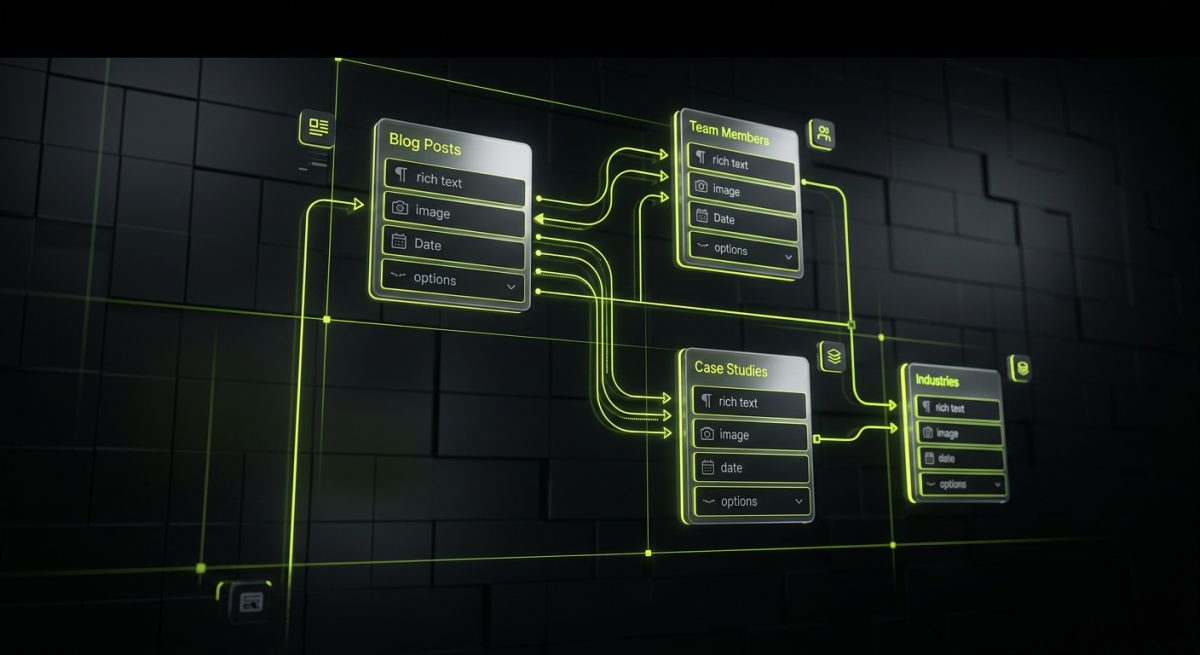
Webflow's CMS is a structured content system built around collections — think of them as database tables with a defined schema. Each collection has fields: text, rich text, image, reference, multi-reference, option, switch, date, and more. Items in a collection are instances of that schema. A Blog Posts collection might have fields for title, body, author (a reference to a Team Members collection), publish date, and a category option field.
This matters because it separates content structure from presentation, which is the correct way to build any content-driven site. The CMS does not dictate how content looks — it stores the data, and collection pages and collection lists render it according to whatever design you've built.
Collection Pages and Dynamic Binding
Every collection in Webflow can have a collection page template — a single page design that renders dynamically for each item in the collection. A Case Studies collection with 40 items has one template page that Webflow renders 40 times, each time binding the relevant item's fields to the design elements you've connected.
Dynamic binding works by connecting design elements to CMS fields. A heading element gets bound to the Title field. An image gets bound to the Featured Image field. A rich text block gets bound to the Body field. When an editor updates a CMS item, the change propagates to every place that item is referenced across the site — automatically, without developer involvement.
Reference and Multi-Reference Fields
Reference fields are where Webflow's CMS becomes genuinely powerful for complex editorial architectures. A Projects collection can reference an Industries collection and an Authors collection simultaneously. On the collection page, you can surface data from those referenced collections — the author's photo, the industry's color code — without duplicating data.
Multi-reference fields extend this to one-to-many relationships: a single project can reference multiple service categories, and a filtered collection list on the services page can surface only the projects tagged to that service. This is relational data modeling inside a visual CMS, and it covers the majority of real-world editorial requirements for marketing sites, portfolios, and product pages.
CMS Limits and When They Become a Constraint
Webflow's CMS has documented limits: 10,000 items per collection, 20 collections per site on the CMS plan, and 30 fields per collection. For most marketing sites and content-driven builds, these limits are not a practical concern. For large-scale e-commerce catalogues, complex multi-tenant applications, or sites with deep relational data requirements, they can become blockers.
This is one of the decision points where a Webflow-to-Next.js or Webflow-to-Astro architecture makes sense — using Webflow as the visual CMS and design layer while offloading data complexity to a headless backend. At werun.dev, this is a pattern we use for clients who need Webflow's editorial experience without accepting its data architecture constraints.
Webflow Interactions and Animations: What's Actually Happening
Webflow's Interactions panel generates JavaScript. When you build a scroll-triggered animation or a hover state transition that goes beyond CSS, Webflow writes the underlying JS logic and attaches it to the elements you've configured. The output is real JavaScript — event listeners, timeline objects, state management — not CSS transitions with a visual wrapper.
The Two Interaction Systems
Webflow has two distinct interaction systems that are worth distinguishing:
Element Triggers handle interactions scoped to a single element — mouse hover, click, scroll into view, scroll out of view. These are appropriate for component-level animations: a card that lifts on hover, a modal that fades in on click, a section heading that slides up as it enters the viewport.
Page Triggers handle scroll-position-based animations across the entire page — parallax effects, sticky navigation color changes, progress indicators. These run on a global scroll listener and affect any element on the page, not just the one being interacted with.
GSAP and the Case for Custom Animation Code
Webflow's native interaction system covers a wide range of use cases, but it has limitations in sequencing complexity, performance optimization, and fine-grained easing control. For projects requiring sophisticated animation work — staggered entrance sequences, scroll-scrubbed timelines, SVG path animations — we use GSAP (GreenSock Animation Platform) via custom code embed.
GSAP integrates cleanly with Webflow. You target elements using standard CSS selectors or Webflow's auto-generated class names, initialize timelines in a DOMContentLoaded listener, and let GSAP handle the animation logic while Webflow handles the layout and CMS.
// Example: GSAP ScrollTrigger on a Webflow section
gsap.registerPlugin(ScrollTrigger);

gsap.from('.hero-heading', {
  scrollTrigger: {
    trigger: '.hero-section',
    start: 'top 80%',
    toggleActions: 'play none none none'
  },
  y: 40,
  opacity: 0,
  duration: 0.8,
  ease: 'power3.out'
});
This pattern gives you production-quality animation performance without abandoning Webflow's CMS and layout system. The Designer handles structure; GSAP handles motion.
Performance Considerations
Webflow-generated interactions add JavaScript weight to the page. For projects with heavy animation requirements, it is worth auditing what Webflow's native system is generating versus what a lean custom implementation would produce. In several cases, replacing Webflow's interaction output with a targeted GSAP implementation has reduced JavaScript execution time and improved Core Web Vitals scores — particularly Interaction to Next Paint (INP) and Total Blocking Time (TBT).
Performance is not a post-launch concern. It is a build-time architectural decision, and it is one of the areas where working with a development team that understands both Webflow's internals and frontend performance optimization makes a measurable difference.
Webflow Hosting, the Editor, and the Publishing Model

Webflow runs on AWS infrastructure with a global CDN. Sites are published as static HTML, CSS, and JavaScript files — there is no server-side rendering at request time for standard Webflow sites. This means Time to First Byte is fast, there is no database query overhead, and the attack surface is minimal compared to a dynamically rendered CMS like WordPress.
The publishing model is worth understanding in detail because it affects how content updates work. When an editor publishes a change in the Webflow CMS, Webflow regenerates the affected static files and pushes them to the CDN. This is not instant — it typically takes between 10 and 60 seconds for a publish to propagate — but it means the live site is always serving pre-built files, not generating pages on demand.
The Webflow Editor vs. the Designer
Webflow has two distinct editing interfaces that serve different roles:
- The Designer is the full development environment. It exposes the DOM, the stylesheet, the CMS schema, the interaction panel, and the site settings. It requires training to use effectively and is intended for developers and advanced designers.
- The Editor is a simplified overlay that appears on the live site. It allows content editors to update CMS fields, edit static text, swap images, and publish changes without accessing the Designer. It is intentionally limited — editors cannot change layout, add new elements, or modify styles.
This separation is one of Webflow's most important features for B2B clients. The developer builds and locks the design system; the editor operates within it. There is no risk of a content update breaking the layout because the editor does not have access to layout controls.
Webflow API and Headless Use Cases
Webflow exposes a REST API that allows external systems to read and write CMS data. This opens up a significant range of integration patterns:
- Syncing product data from an external PIM into Webflow CMS collections
- Pushing form submissions from Webflow into a CRM like HubSpot
- Reading Webflow CMS content into a Next.js or Astro front-end for headless rendering
- Triggering Webflow publishes from a CI/CD pipeline or an n8n automation workflow
The API is rate-limited (60 requests per minute on standard plans) and operates on a per-site token model. For high-frequency data sync requirements, middleware solutions — Zapier, Make, or custom Node.js services — sit between the external data source and the Webflow API to handle batching and error recovery.
At werun.dev, API integrations are a core part of how we build Webflow projects for clients with existing business systems. A Webflow site that talks to your CRM, syncs with your internal tools, and triggers automations based on user behavior is a fundamentally different product from a static marketing site — and it is well within what the platform supports when you build it correctly.
When Webflow Is the Right Choice — and When It Isn't
Webflow is the right platform for a specific profile of project. Understanding that profile prevents expensive migrations in both directions — teams that build on Webflow when they need WordPress, and teams that stay on WordPress when Webflow would serve them better.
Where Webflow Wins
Marketing sites with active content teams. The CMS architecture, the Editor interface, and the publishing model are purpose-built for teams that update content frequently but do not want developers involved in every change. A well-structured Webflow CMS with trained editors is faster to maintain than a comparable WordPress site with a page builder.
Design-led projects where visual fidelity matters. Webflow's Designer produces cleaner, more predictable markup than most WordPress page builders. For agencies and in-house teams that start from Figma and need pixel-perfect output, Webflow reduces the gap between design and production.
Projects requiring fast iteration without a full development team. Once a Webflow site is built with a solid class architecture and CMS schema, non-technical team members can make meaningful updates — new landing pages, new CMS items, new sections built from existing components — without writing code.
Sites where performance and security are baseline requirements. Static file delivery from a CDN with no server-side execution is a strong default security posture. There are no plugins to patch, no PHP vulnerabilities to monitor, and no database to protect.
Where Webflow Has Real Limits
Complex e-commerce. Webflow's native e-commerce features cover basic product catalogues and checkout flows, but they do not approach the depth of Shopify for serious retail operations. Inventory management, multi-currency, advanced discount logic, and third-party fulfillment integrations are all significantly more capable on Shopify.
Applications with complex user authentication and data models. Webflow is not a backend. Memberstack and Outseta extend it meaningfully for membership sites and client portals, but if your project requires complex role-based access control, real-time data, or transactional logic, you are building on top of Webflow rather than inside it — and at some point, a custom backend or a Next.js application is the more honest architectural choice.
Large-scale content operations. The 10,000-item CMS limit and the 20-collection cap are not problems for most marketing sites. They are problems for news publishers, large directories, and multi-brand platforms. At that scale, a headless architecture using Webflow as the visual layer and a purpose-built CMS (Contentful, Sanity, or a custom database) as the data layer is the right approach.
If you are evaluating Webflow for a project and are not sure which category it falls into, the practical test is this: can the majority of what you need to build be expressed as CMS collections, static pages, and interactions — with integrations handling the rest? If yes, Webflow is likely the right tool. If the answer requires significant qualification, it is worth a technical conversation before committing to the platform.
Werun.dev works with clients at exactly this decision point — evaluating platform fit, scoping the build correctly, and delivering Webflow projects that hold up under real editorial and technical pressure. If you have a Webflow project in scope, start a conversation with the team.